How to Use AFFiNE as a Practical Planner for Work

By
Alexander Gran
Founder & Editor
Updated: July 2026. This guide covers a practical planning setup using AFFiNE based on its documented features as of July 2026. AFFiNE is under active development — check current features and pricing at affine.pro before committing to a team setup.
AFFiNE is a workspace tool that combines notes, whiteboards, and database views in one place. It’s open-source, has a free tier for individual use, and positions itself as an alternative to tools like Notion or Obsidian for knowledge work. Whether it’s a useful planner depends less on the tool’s features than on whether you’ll actually maintain a planning system inside it.
This guide covers a practical AFFiNE planning setup for solo workers and small teams — what to build, what AFFiNE does well, and where you’ll need to supplement it with other tools. If you’re still deciding whether AFFiNE is the right tool, see the AFFiNE vs AppFlowy vs Anytype comparison first.
What AFFiNE offers for planning work
AFFiNE’s relevant features for planning:
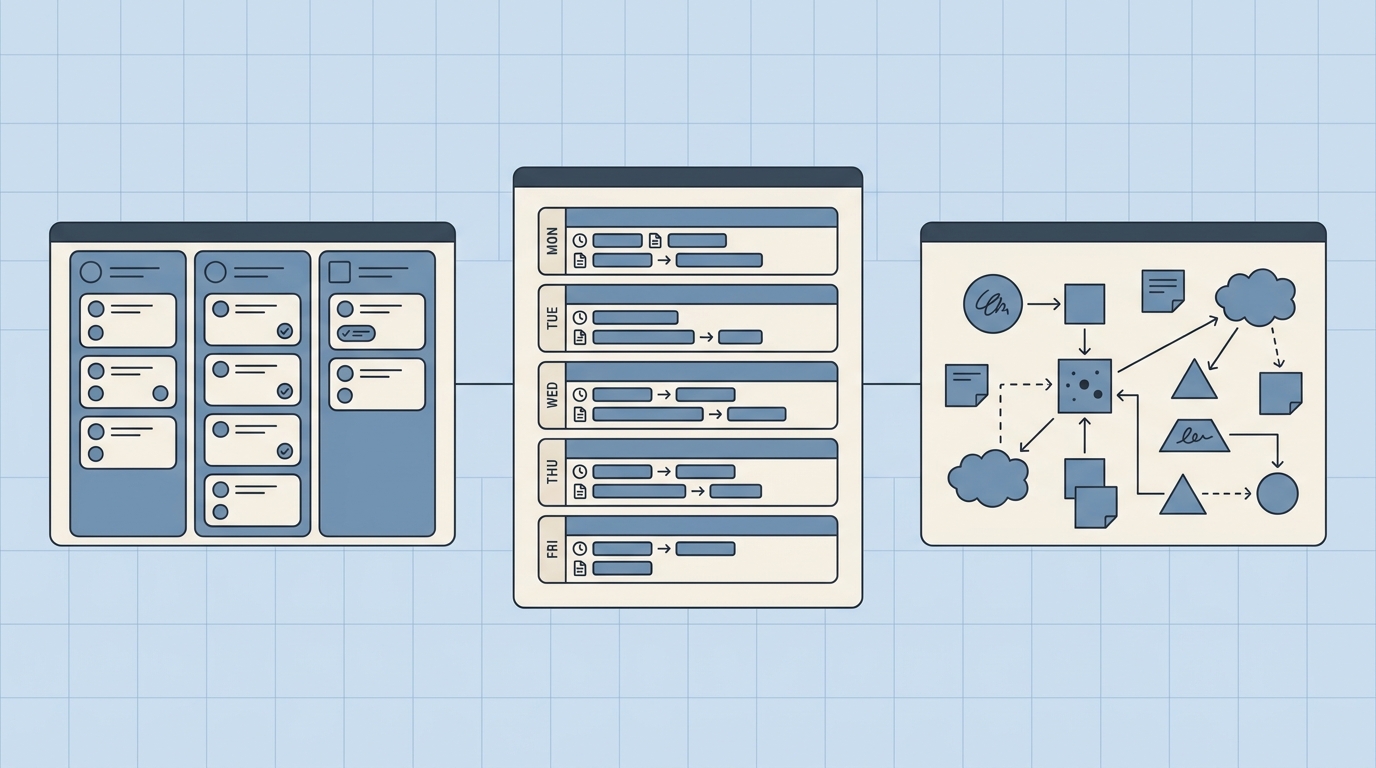
- Docs and pages: Standard note-taking with block-based editing. Useful for weekly plans, meeting notes, project summaries, and reference pages.
- Kanban boards: Visual task boards with columns. Useful for project status tracking (Backlog, This Week, In Progress, Waiting, Done).
- Whiteboards (Edgeless mode): Freeform canvas for diagrams, brainstorming, or visual planning. Different from traditional page views.
- Templates: Reusable page structures. AFFiNE includes built-in templates and lets you save custom ones.
- AI assistance: AI features for writing, summarizing, and editing within pages.
- Collaboration: Multi-user workspaces with shared access. Cloud sync for cross-device use.
AFFiNE is free for individual use. Commercial usage and some team features have associated costs. Check current pricing at affine.pro before setting up for team use.
What AFFiNE isn’t
AFFiNE is a notes and workspace tool, not a calendar or task manager. It doesn’t include:
- Calendar view with scheduled time blocks
- Reminders or notifications for upcoming tasks
- Recurring task support with automatic scheduling
- Dependency tracking between tasks
- Workload management or capacity planning
- Time tracking
AFFiNE works better as a planning workspace alongside a dedicated calendar (Google Calendar, Fantastical) and task tool (Todoist, Linear, Things) than as a replacement for them. For teams that need full project management, see the open-source ClickUp alternatives roundup.
A practical four-part planning system
A lightweight AFFiNE setup buildable in about 20 minutes:
1. Daily capture area. One page or block where loose tasks, ideas, and quick notes land throughout the day. Capture fast, organize later — don’t interrupt your workflow to find the “right” place for something.
2. Weekly plan page. A reusable template with sections for: this week’s priorities (3–5 items), deadlines, scheduled meetings, items waiting on others, and a short Friday review (what shipped, what’s blocked, what shifts to next week). Save this as a template and create a new page from it each Monday.
3. Project board. A Kanban board with five columns: Backlog, This Week, In Progress, Waiting, Done. Each card is a project or deliverable, not an individual task. Tasks live in your task manager; the board shows project-level status at a glance.
4. Reusable templates. For any work you repeat, build a template. Useful starting points: client project kickoff, weekly review, meeting notes with action items, content planning page, sprint summary. Templates reduce setup friction — less time deciding how to structure a page, more time doing the work.
Who this works well for
- Freelancers and consultants who want project notes and status visible in one place
- Creators managing content, drafts, and production stages
- Small teams (2–5 people) who want a shared workspace without the cost or complexity of a full project management platform
- Anyone who currently uses multiple apps for notes, boards, and documents and wants to consolidate
Who should look elsewhere
- Teams that need strict calendar integration, recurring tasks, or reminders — AFFiNE doesn’t handle scheduling natively
- Teams with compliance, audit, or access control requirements — verify AFFiNE’s security and permission features before using for sensitive work
- Teams that need formal project management: gantt charts, resource allocation, time tracking, or client-facing reporting
- Anyone who needs tight integration with tools like Jira, GitHub, or Salesforce — check AFFiNE’s current integration list, as third-party connections are more limited than dedicated PM tools
A 20-minute starter setup
- Create one workspace
- Build a weekly planning template with four sections (priorities, deadlines, meetings, blockers)
- Create a project Kanban board with five columns
- Add current active projects to the board as cards
- Schedule a 15-minute Friday review to close the week and set up the next one
That’s the minimum viable system. Add templates for recurring work as patterns emerge. Keep the daily capture area fast — one click, type, done. A consistent 15-minute weekly review is worth more than an elaborate system used inconsistently.
Related reading
- AFFiNE vs AppFlowy vs Anytype — how AFFiNE compares to other open-source Notion alternatives
- How to Import Notion Data to AFFiNE — if you’re migrating from an existing Notion workspace
- 7 Note-Taking Apps for Faster Knowledge Work — broader roundup including alternatives to AFFiNE
- Open-Source ClickUp Alternatives — if project management depth is the priority