How to Import Notion Data to AFFiNE: 2026 Migration Workflow

By
Alexander Gran
Founder & Editor
Updated: July 2026. This guide is based on AFFiNE’s official documentation and publicly documented import behavior as of July 2026. AFFiNE is under active development — verify each step against the current version of the application before migrating.
Migrating from Notion to AFFiNE means moving your notes, documents, and databases from a mature, widely-used workspace to a newer open-source tool. AFFiNE supports Notion imports, but the process requires understanding what transfers cleanly, what changes, and what to verify before you decommission your Notion workspace.
This guide covers how the import works, the practical limitations, and what small teams should check before committing to a migration. If you haven’t decided whether AFFiNE is the right fit yet, see our AFFiNE vs AppFlowy vs Anytype comparison first.
What AFFiNE can import from Notion
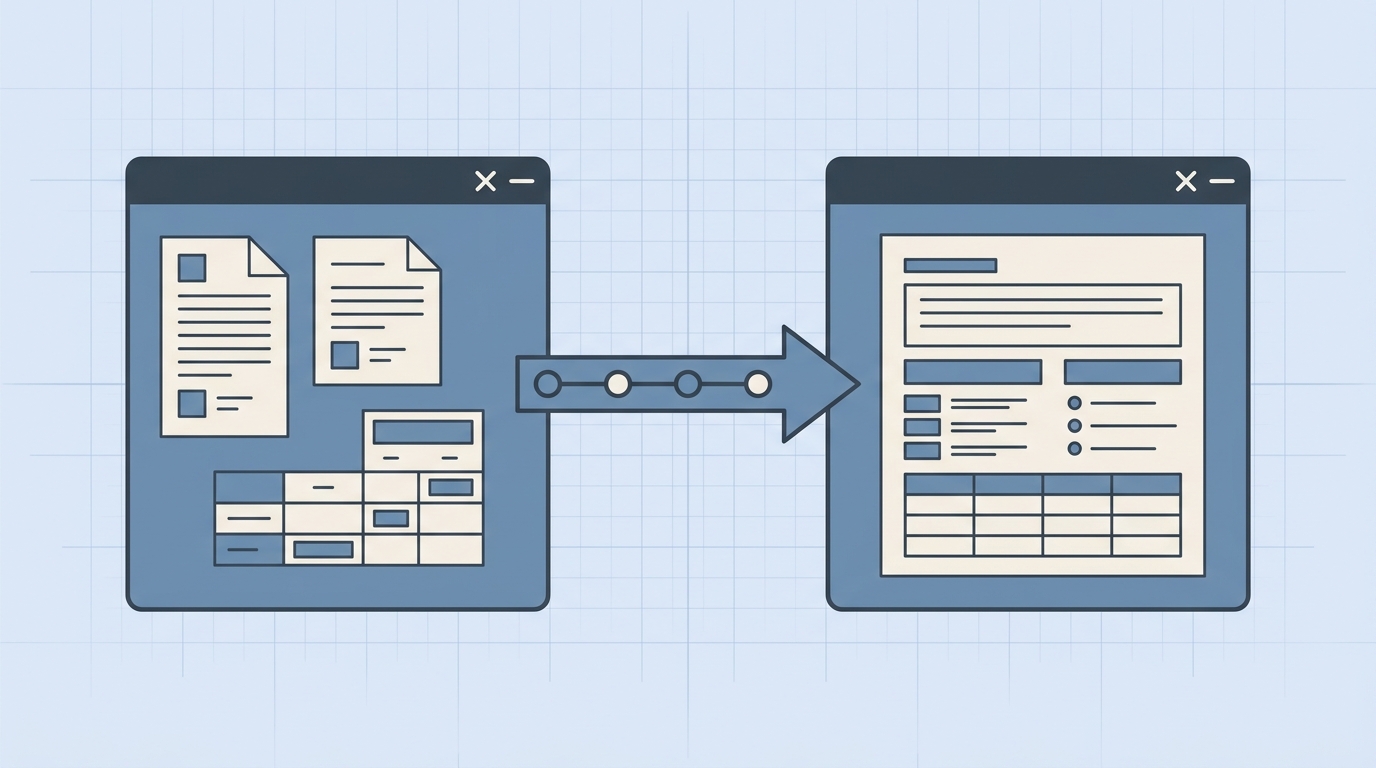
AFFiNE’s import function accepts Notion exports in HTML or Markdown format. Notion provides a built-in export option that packages your workspace content into a ZIP file. The general process:
- In Notion, go to Settings → Export
- Choose Export format: Markdown & CSV or HTML
- Select whether to include subpages
- Download the ZIP file
- In AFFiNE, open a workspace, go to settings, and use the import function to upload the ZIP or its extracted contents
AFFiNE’s import handles Notion pages with text, headings, lists, and basic block content. The result is a set of AFFiNE pages with equivalent structure.
What does not transfer cleanly
Not all Notion content maps to AFFiNE equivalents. Before migrating, verify the current state directly in AFFiNE — this changes across software versions:
Databases and views. Notion databases (tables, galleries, boards, calendars) are a core Notion feature with no identical counterpart in AFFiNE. Exported database content comes through as Markdown tables or CSV files. AFFiNE’s database features are different and less mature than Notion’s — verify how your database content renders after import before assuming it is usable.
Formulas and rollups. Notion’s database formulas and rollups do not export as functional formulas — they export as static values or are dropped. If your workflows depend on Notion database calculations, these will not be functional in AFFiNE after import.
Relations between pages. Notion’s relation properties (linking database records to each other) are not preserved in the export format.
Inline databases and synced blocks. These may not transfer as expected. Test with a sample export before migrating your full workspace.
Embedded files and media. Attachments and embedded files may not transfer reliably. Audit embedded media after import and re-upload any that are missing.
Data handling considerations before migrating
Before exporting from Notion, understand what you are moving:
- Notion’s export gives you a snapshot of your workspace at export time — it does not sync updates after the fact
- If your Notion workspace contains client data, confidential business information, or any regulated data, review AFFiNE’s data handling policies for the deployment type you are using (cloud vs self-hosted)
- Self-hosted AFFiNE keeps data on infrastructure you control; cloud AFFiNE processes data on AFFiNE’s servers — verify which is appropriate for your content before importing
- After import, you are responsible for access permissions in AFFiNE — review who can access the imported workspace
Testing before a full migration
Do not migrate your full Notion workspace in one step. Test with a representative sample first:
- Export one section of your Notion workspace — a team space or a project, not everything
- Import to AFFiNE
- Walk through the imported pages with someone who knows the original content
- Identify what transferred correctly, what changed, and what is missing
- Decide based on the test result, not the migration guide
When a full migration makes sense
Migrating from Notion to AFFiNE makes practical sense when:
- Your Notion use is primarily documents and notes, not databases — your content will transfer better
- You have a technical team member who can self-host AFFiNE and maintain it
- Data residency or privacy requirements make a self-hosted open-source option preferable to a SaaS workspace
- Your Notion subscription cost is a meaningful factor and AFFiNE’s feature set covers your actual workflow
If your team relies heavily on Notion databases, views, and automations, the migration friction is significantly higher — verify AFFiNE covers your use cases before committing.
The official import guide is in AFFiNE’s documentation. Verify all steps against the current application, as UI and import behavior change across versions.
Related reading
- AFFiNE vs AppFlowy vs Anytype — how AFFiNE compares to other open-source Notion alternatives before you commit to migrating
- How to Use AFFiNE as a Practical Planner for Work — what the day-to-day workflow looks like once you’re in AFFiNE
- Open-Source ClickUp Alternatives — if project management is the primary driver of the switch, not document editing