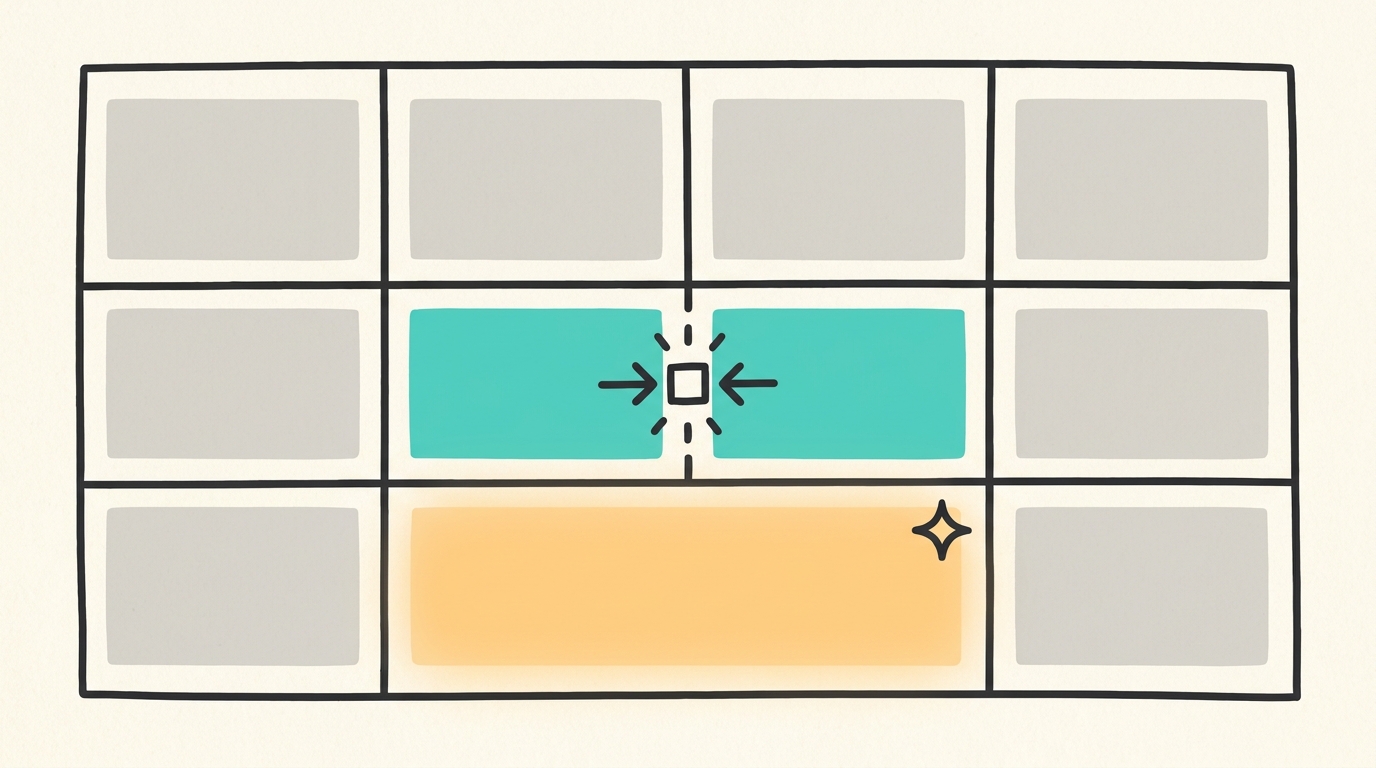
How to Merge Cells in Notion: Simple Tables vs. Databases

By
Alexander Gran
Founder & Editor
Updated: August 2026. This guide is based on Notion’s official Help Center documentation as of August 2026. Notion’s interface changes over time — verify menu labels and steps against your current version before following along.
Cells merge only in Notion’s simple tables — the plain table block you insert with /table. Notion databases (also displayed as tables) don’t support cell merging at all; that option won’t appear in the cell menu no matter what you select. If you’re not sure which one you’re looking at, check whether the block has properties, filters, sort, or multiple views — if it does, it’s a database.
How to Merge Cells in a Notion Simple Table
According to Notion’s Help Center, merging cells works the same way on web and desktop:
- Open an existing simple table, or create one by typing
/tableon a page. - Select a rectangular group of adjacent cells — click and drag across the cells you want to combine.
- Open the cell menu and click Merge cells.
The selection has to form a rectangle. You can merge cells across a row, down a column, or in a block spanning several rows and columns, but you can’t merge an irregular, non-contiguous, or L-shaped selection.
What Happens to the Existing Content
Per Notion’s documentation: “The top-left (anchor) cell keeps all content. Other selected cells are cleared.” Only the text in the upper-left cell of your selection survives the merge — everything else in the selected range is deleted, not appended or combined. If any of the other cells have content you need, copy it out before merging, since the merge doesn’t warn you before clearing it.
How to Unmerge Cells
To reverse a merge, Notion’s Help Center outlines the same two-step pattern:
- Select the merged cell.
- Open the cell menu and click Unmerge cells.
The anchor cell keeps its text; every other cell that was part of the merge comes back as an empty individual cell. Unmerging does not restore whatever content was cleared when you originally merged — that data is gone unless you’d saved it elsewhere.
Why the Merge Cells Option Is Missing
If Merge cells doesn’t show up in the cell menu, the most common reasons are:
- You’re in a database, not a simple table. Notion databases don’t support cell merging — this is a simple-table-only feature.
- Your selection isn’t a rectangle. Notion’s instructions specify selecting “a rectangular group of cells.” A scattered or irregular selection won’t offer the option.
- The cells aren’t adjacent. Merge only applies to a contiguous block of cells, not cells picked from different parts of the table.
- You have the wrong block selected. Make sure you’ve actually selected table cells and not the whole table block, a single cell’s text, or a heading above the table.
If none of those apply and the option still doesn’t appear, try reloading the page or checking for an app update.
Simple Table vs. Database Table
Notion’s Help Center describes the split this way: simple tables “display plain text visually without database functionalities (such as filters, sorts, and specific property values),” while database tables let you “open each entry as its own page, add functional tags (dates, people, URL, and more), create relationships, rollups, and formulas, and display data in different views (lists, timelines, calendars, boards, and galleries).”
In practice:
- Simple table — for formatting and static content. Supports merged cells, row/column headers, and basic layout. No properties, no filtering, no multiple views.
- Database table — for structured, queryable data. Supports properties, filters, sorting, formulas, relations, and views like boards, calendars, and galleries. Cells in a database table cannot be merged.
Notion also lets you convert a simple table into a database at any point — via the ••• menu at the top of the table, click Turn into database — if you later need filtering or properties. There’s no equivalent conversion in the other direction for merged cells: turning a database back into a simple table doesn’t recreate any merges, since the database never had that structure to begin with.
When Merged Cells Are Useful
Merged cells are a formatting tool, not a data tool. They’re useful for:
- Headers that span multiple columns
- Visually grouped sections within a longer table
- Simple schedules and timetables
- Pricing tables with a shared label across several rows
- Meeting agendas with grouped topics
- Client-facing documents where layout matters more than sortability
If your table’s job is to hold information you’ll want to reference, search, or filter later, a database table is still the better fit — merged cells don’t change that tradeoff.
Limitations
A few things to keep in mind before merging cells in a table you plan to reuse:
- Portability. Tables with merged cells tend to translate less cleanly when copied into spreadsheets or other apps that expect a uniform grid.
- No database functionality is added. Merging cells is purely visual. It doesn’t give a simple table properties, filters, sorting, or formulas — those still require converting to a database.
- Structured data belongs in a database. If you’re tracking anything you’ll need to sort, filter, or query later, a standard database table remains the better choice, merged or not.
FAQ
Can you merge cells in a Notion database?
No. Cell merging is only available in simple tables. Notion’s database tables don’t support it.
Can you merge cells vertically?
Yes. As long as the selection is a rectangular, contiguous block, you can merge cells down a column the same way you’d merge them across a row.
Can you merge more than two cells?
Yes. You can select and merge any rectangular group of adjacent cells, not just pairs.
What happens to text in the other cells?
It’s deleted. Only the content in the top-left (anchor) cell of your selection is kept after merging.
Can you unmerge cells afterward?
Yes. Select the merged cell, open the cell menu, and click Unmerge cells. The anchor cell keeps its text; the rest come back empty — content cleared at merge time isn’t restored.
Is the feature available on the free plan?
Notion’s official documentation on merging cells doesn’t list it as a paid-plan restriction, and simple tables are a core block available across Notion’s plans. If you can’t find the option, the cause is more likely to be table type or selection shape than your plan tier — check the reasons above.