How to Run a Webinar with Riverside: A Practical Workflow Guide

By
Alexander Gran
Founder & Editor
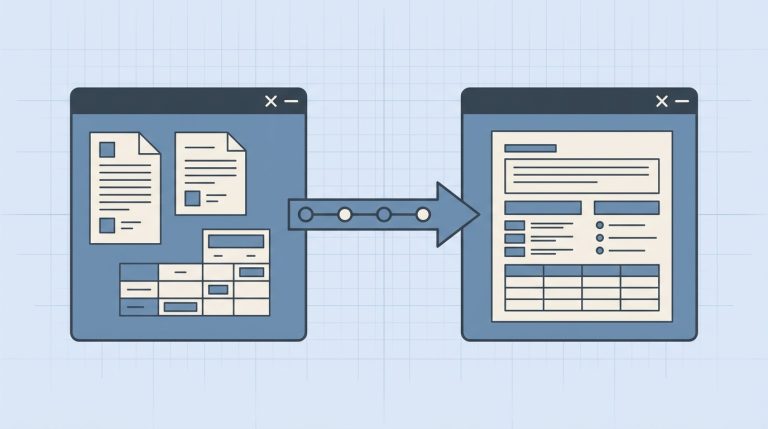
Most teams running webinars end up with the same fragmented workflow: schedule in Calendly, host in Zoom, download the recording, upload it to a video editor, hand it off to someone for clipping, then post the results somewhere. Each handoff is a point where things get lost, delayed, or inconsistent. Riverside’s webinar solution is built around collapsing that chain — scheduling, recording, editing, and repurposing happen inside a single platform. This guide walks through the workflow end-to-end, with the caveat that this is a Riverside-specific guide, not a generic webinar playbook.
Before the Webinar — Schedule and Invites
Setup starts in the Riverside dashboard under Plan → Schedule session. You enter the session name, date, time, and timezone. Once the session is created, Riverside generates separate invite flows for three different participant types: guests, producers, and audience members.
Guests are on-camera participants — co-hosts, speakers, or interviewees. They join through a browser link and their video and audio record locally on their device, not through a server-compressed stream. This is the core of Riverside’s recording quality advantage: each guest generates their own 4K video and 48kHz WAV audio track, which are uploaded after the session ends.
Producers join behind the scenes. A producer can monitor the session, manage technical issues, control what’s visible on screen, and coordinate logistics without appearing on camera. For small teams running polished webinars, this separation — one person presenting, one person managing — is operationally useful and reduces on-screen distractions.
Audience members are invited separately and have a different experience: they watch the session but don’t appear on video.
Registration and Lead Capture
Riverside includes an audience registration toggle at the session level. When enabled, Riverside generates a registration page where attendees sign up before the event. You can add custom fields to collect whatever data matters — company size, job role, specific interest — beyond just name and email.
Registered attendees receive automatic reminder emails with calendar links for Google Calendar, Outlook, and Yahoo Calendar. This removes the manual step of sending calendar invites individually, which matters if you’re running recurring webinars or expecting a larger audience.
For teams using HubSpot, Riverside has a direct integration that syncs registration data into your CRM. This is the point where webinar attendance stops being a one-off event and starts feeding your pipeline — contacts who registered but didn’t attend, contacts who watched all the way through, contacts who asked questions. That data is more actionable when it’s already in your CRM rather than sitting in a CSV export.
Recording Setup
Riverside’s recording model is local-first, which has practical implications for how you brief guests before the session. Each participant records on their own device and the files upload to Riverside after the session ends. This means:
- Internet connection quality during the session affects the stream quality your audience sees in real-time, but it does not degrade the recording. Even if the live stream looks compressed or choppy, the individual recordings are clean.
- Guests need to stay connected until the upload completes after the session ends. Closing the browser tab before upload finishes can result in incomplete or missing tracks.
- Each participant generates a separate video and audio track, giving you full control in post-production over levels, cuts, and timing.
Producer mode is worth emphasizing here: if you’re running a session with a live audience and want someone managing the logistics — monitoring chat, cueing the next speaker, handling technical issues — the producer joins separately and doesn’t interfere with the recording or the on-screen presentation. This is a feature that matters for professional-looking webinars where the host can stay focused on the content.
After the Webinar — Editing and Repurposing
Once the session ends and recordings have uploaded, Riverside generates a transcript. From there, the editing workflow is text-based: you read the transcript and delete sections of text to cut the corresponding video. For hosts who don’t have video editing experience, this is significantly more accessible than a timeline-based editor. You can remove the first two minutes of setup chatter, cut a section where audio dropped, or trim dead air — all by working with text.
Magic Clips uses the transcript to automatically identify short, self-contained segments suitable for social distribution — product highlights, quotable moments, key insights. You review and approve the suggestions rather than manually scrubbing through the full recording to find clip-worthy moments.
The compounding value of this workflow: a single 45-minute webinar produces a cleaned-up full recording, a set of short clips, and a transcript — all from one session, without exporting to a separate editor. For teams trying to build a content library from their webinars, that’s a meaningful reduction in per-session effort. For more on how to think about the overall webinar workflow for small teams, see The Small-Team Webinar Workflow.
What to Verify Before Your First Webinar on Riverside
Before running a live session with an external audience:
- Run a test session end-to-end. Invite yourself or a colleague as a guest, record a 5-minute session, end it, wait for the upload to complete, and confirm the separate tracks are in the Riverside library. Don’t assume it works — verify it.
- Test the registration flow from the attendee side. Register for your own test event, confirm you receive the reminder email, and check that the calendar links work correctly.
- Check the HubSpot integration if you’re using it. Verify that a test registration creates the expected contact record with the right fields populated.
- Brief guests on the post-session upload. Remind them explicitly to keep the Riverside tab open until the upload progress indicator completes. This is the most common point of confusion for first-time Riverside guests.
- Assign your producer role before the session. Don’t try to present and manage logistics simultaneously — designate someone to the producer seat in advance.
If you’re looking for format inspiration before building your first session, 7 Webinar Examples Small Teams Can Reuse has practical formats with different audience and goal combinations.
Source: How to Run a Webinar with Riverside (Riverside). This article is a practical interpretation of that content.